



Dialog
Element Name: Dialog
Category: Base Action
Applicable Channels: WhatsApp, Facebook Messenger, Microsoft Teams, Skype, Slack, X Direct, X Mentions, Facebook Mentions, Line, Telegram, Widget, Instagram Message, Voice Channels, Apple Business, LinkedIn, Genesys Cloud Audio Connector, GenesysCloudWidget.
Description: Configurable dialog box functionality with a customizable name. It allows multiple text variations within a single dialog box, supports logical conditions for activation, and enables random message presentation.
Functionality: Automates outbound dialog presentation from the Lynn flow. Messages can be configured using expressions or flow variables. Logical preconditions can be defined to control dialog activation, making it ideal for customizing interactions based on the originating channel (Chat or Voice). The random presentation option allows alternating between different messages, providing greater dynamism, personality, and a more human tone to the interaction. Emoji usage is supported.
Text-Type Dialog Configuration
In the Text tab, the interface includes an interpretation mode selector that defines how the system will process the content entered in the main text box.
Plain: Defines that the content will be treated as literal text. In this mode, the system does not interpret variables, so the message is displayed exactly as written in the text box.
Expression: This is the recommended option for the overall flow structure. It allows the inclusion of entities and variables from the flow or channel using JavaScript (JS) syntax. This is ideal for generating dynamic, personalized, and conditional messages.
Element Type Syntax Rule Input Example Expected Result Literal Text Must be enclosed in single quotes (') 'Good morning'Good morning Variable / Entity Use the exact name of the existing variable in the system CLIENT_NAMELuis Daniel Compound Expression Use the concatenation operator (+) 'Good morning ' + CLIENT_NAMEGood morning, Luis Daniel HTML: For interactions through the Lynn Web Chat, content can be enhanced using HTML tags. This capability allows the creation of complex messages, insertion of hyperlinks, input fields, and dynamic image references.
Exclusive functionality for the Widget Chat channel.
Usage rule: HTML code must be entered directly into the text box. When rendered in the chat, the user will see the structured element instead of the source code.
Example:
<p\> Si necesitas cotizar, puedes hacerlo pinchando \<a href=mailto:contacto@contoso.com target='_blank'\> AQUI\</a\>\</p\>Result:
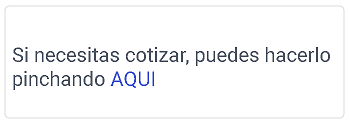
HTML Expression: For scenarios where it is necessary to combine a Lynn entity with an advanced visual structure in the Lynn Widget Chat, an HTML Expression can be used. This option allows flow variables to be integrated directly within HTML tags.
Exclusive functionality for the Widget Chat channel.
Note
As with text expressions, the concatenation operator (+) is used to combine HTML tags (as literal text enclosed in quotes) with variables or entities defined in the system.
Example: Preloaded entity:
CLIENT_NAME→ Luis Daniel'\<p\>' + 'Hello ' + CLIENT_N+ ' if you need to request a quote, you can do it by clicking on \<a href=mailto:contact@contoso.com target=\_blank\> HERE\</a\>\</p\>' |Result:
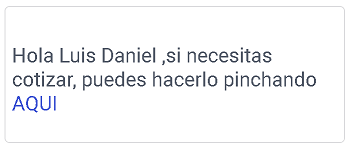
Iframe URL: For scenarios where interactive or external content needs to be displayed directly within the chat window, the Iframe URL option is available. This functionality allows content from external websites to be embedded within the chat interface.
Exclusive functionality for the Widget Chat channel.
Its purpose is to display elements such as maps, calendars, document viewers, or external forms without requiring the user to leave the chat interface.
Example:
<iframe src="https://www.google.com/maps/embed?..." width="600" height="450" style="border:0;" allowfullscreen="" loading="lazy"></iframe>Result:
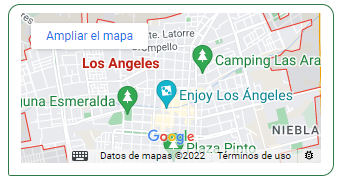
SSML Dialog Configuration
This section allows configuration of Text-to-Speech (TTS) behavior using industry-standard SSML tags.
Configuration: Requires the voice channel to be integrated with Lynn Voice Gateway (LVG).
Implementation modes:
Using SSML tags: Provides granular control over voice characteristics such as speaking rate, volume, pitch, and neural voice selection.
Using plain text: If advanced customization is not required, the system processes the text directly.
SSML Example:
<speak version=1.0 xmlns=http://www.w3.org/2001/10/synthesis xmlns:mstts=https://www.w3.org/2001/mstts xml:lang=es-MX> <voice name=es-MX-DaliaNeural> <prosody rate=9% volume=-5.00% pitch=0%> Hello ' + USER_NAME + ', I am calling from Contorso.S.A. I want to give you an important message.</prosody> </voice></speak>
Text Expression Example:
Hello ' + USER_NAME + ', I am calling from Contorso.S.A. I want to give you an important message.
Resulting playback:
The system plays the message using the configured audio properties (specific voice, speaking rate, and volume).
Voice : "Hello Luis Daniel, I am calling from Contorso.S.A. I want to give you an important message."
Interpret as ASR: This parameter defines whether the dialog action should pause the flow to capture and process the user's voice input (ASR - Automatic Speech Recognition).
- Expected input: Accepts a boolean expression or variable.
- Behavior according to the value:
- True: The flow pauses after the message is played and waits for the user's response. This response is processed by Lynn's cognitive engine to identify the user's intent and route the flow automatically.
- False: The flow skips the waiting stage and immediately continues to the next action once the dialog playback has finished.
Audio-Type Dialog Configuration
This section manages the playback of pre-recorded audio files instead of using Text-to-Speech (TTS). It is ideal for institutional messages, announcements recorded by voice talents, or dynamic audio elements.
Interrupt Audio:
- Yes: Allows the user to interrupt audio playback (barge-in) by responding, which helps speed up the interaction.
- No: The audio will play completely until the end, ignoring any user input during playback.
Content Management:
- (+ Audio) Button: Allows uploading or selecting audio files from the system library.
- (+ Entity) Button: Allows variables or entities to be included as part of the audio sequence. This is useful for playing dynamic messages (e.g., a welcome audio followed by an entity containing the customer's name).
- Ordering: Use the arrow icon (↕) to arrange the sequence of the added elements.
- Removal: Each element includes a trash icon to remove it from the list.
Condition
This tab defines the logical rules that determine whether a specific dialog should be executed or skipped. The dialog is displayed only if the configured logical expression evaluates to true.
- Execution Logic: Supports expressions based on variables, entities, or channel identifiers. It is the primary tool for providing personalized experiences according to the user's context.
| Scenario | Condition | Result |
|---|---|---|
| Dialog 1 | ChannelId == '1' |
"Welcome to our WhatsApp channel" |
| Dialog 2 | ChannelId != '1' |
"Welcome to our other chat channel" |
- Behavior:
If the interaction comes from WhatsApp (
ChannelId == '1'), the system will execute only Dialog 1.If the interaction comes from any other channel, Dialog 2 will be executed.
Important
To ensure flow stability, it is essential to verify the following:
- Entity existence: Always ensure that the entities used in the expression exist at the time of evaluation.
- Error handling: If the system attempts to evaluate a non-existent entity, it will be treated as an error, automatically triggering an error fallback and interrupting the normal flow.
Advanced Features
Dialog Management and Organization
The interface provides efficient message management within a single action, optimizing both bot performance and flow readability.
Add Button (+): Adds a new dialog block to the list.
- Execution order: Dialogs are played in descending order according to their position in the list. Each dialog is displayed as an independent chat bubble, and its execution depends on the conditions configured in its own tab.
- Performance improvement: Grouping multiple dialogs into a single action instead of creating individual actions reduces flow execution latency and is considered a best practice for maintaining organized and efficient flows.
Organization Button (↕): Allows dialogs to be reordered using drag-and-drop operations, making it easier to adjust the conversational flow without recreating elements.
Random Dialog Functionality
When the Random option is enabled, the system randomly selects one of the configured dialogs within the action and presents it to the user.
User experience impact: Pseudo-randomness adds dynamism and a more human feel to the interaction, preventing repetitive and monotonous messages.
Design recommendation (matching scripts): To maintain communication consistency, it is recommended to design scripts in which all random dialogs within the same action are semantically compatible. This ensures that regardless of which message the system randomly selects, the conversation remains natural and coherent.